# Change Billing Method
### 1、How to change
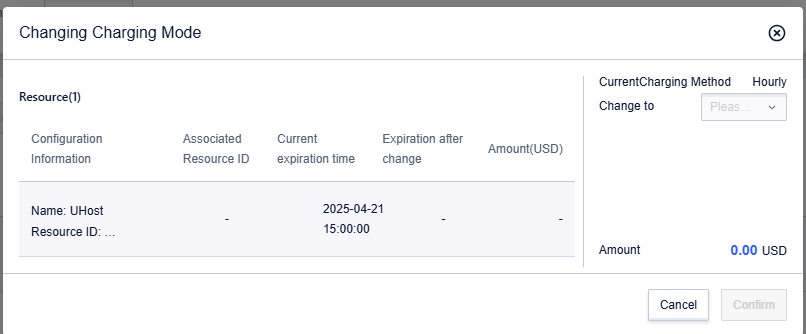
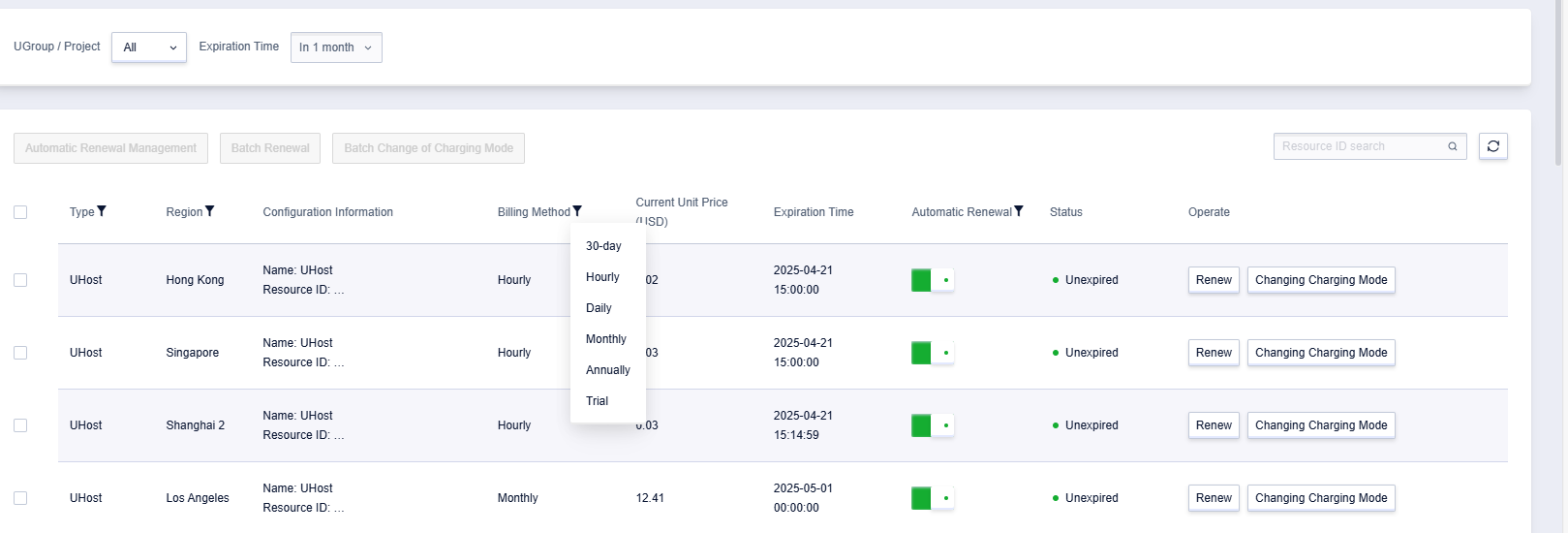
Enter the User Center - Renewal Management page, and click on Changing Charging Mode

In the pop-up prompt, select the required charging method. Click Confirm and pay
### 2、How to perform batch changes
For unexpired resources with the same billing method, batch changes are supported, and up to 100 items can be operated at a time.
Go to the User Center > Renewal Management page, click Batch Change of Charging Mode. By default, 25 items are displayed per page, and the maximum can be adjusted to 100 items per page.
### 3、Billing Method Change Rules
- Currently, the change operation only supports upgrade changes, such as switching from hourly billing to monthly billing, or from hourly billing to annual billing; downgrade changes (e.g., from annual billing to hourly billing) are not supported for the time being.
- The order of the new billing method will take effect after the end of the original billing method.
- If the new billing method is monthly, the renewal will default to the end of the month; if it is annual, the default term will be 1 year.