# Ubuntu 18.04 Environment Configuration
## 1. Check GPU device recognition
```
$ sudo lspci | grep NVIDIA
3D controller: NVIDIA Corporation GK210GL [Tesla K80] indicates that it is recognized as K80
3D controller: NVIDIA Corporation GP102GL [Tesla P40] (rev a1) indicates that it is recognized as P40
```
## 2. Block open-source driver nouveau
Edit the following file:
```
sudo vim /etc/modprobe.d/blacklist-nouveau.conf
```
Write in the following content:
```
blacklist nouveau
blacklist lbm-nouveau
options nouveau modeset=0
alias nouveau off
alias lbm-nouveau off
```
Update and restart:
```
sudo update-initramfs -u
sudo reboot
sudo apt-get install build-essential pkg-config
```
The kernel of console Ubuntu 18.04 image is 4.15.0-68-generic, and the version of linux-headers-4.15.0-68 is no longer available for download from Ubuntu official (the status is deleted), which is necessary for driver installation. It is recommended to upgrade the kernel to the subsequent version first.
You can download the kernel from the official website https://kernel.ubuntu.com/~kernel-ppa/mainline/, such as 4.15.1
You can also download from UFile, and the speed is faster
```
http://gpu.cn-bj.ufileos.com/linux-headers-4.15.1-041501-generic_4.15.1-041501.201802031831_amd64.deb
http://gpu.cn-bj.ufileos.com/linux-headers-4.15.1-041501_4.15.1-041501.201802031831_all.deb
http://gpu.cn-bj.ufileos.com/linux-image-4.15.1-041501-generic_4.15.1-041501.201802031831_amd64.deb
```
Install the kernel, reboot and check the version:
```
sudo dpkg -i *.deb
sudo reboot
uname -r
```
## 3. Install a nvidia driver
### 3.1 Download
Download the appropriate driver from the nvidia official website (current version 418.126.02). Address: https://www.nvidia.com/Download/index.aspx?lang=en-us
You can also download from UFile, and the speed is faster. http://gpu.cn-bj.ufileos.com/NVIDIA-Linux-x86_64-418.126.02.run
### 3.2 Install
```
sudo chmod +x NVIDIA-Linux-x86_64-418.126.02.run
sudo ./NVIDIA-Linux-x86_64-418.126.02.run
```
### 3.3 Check driver status
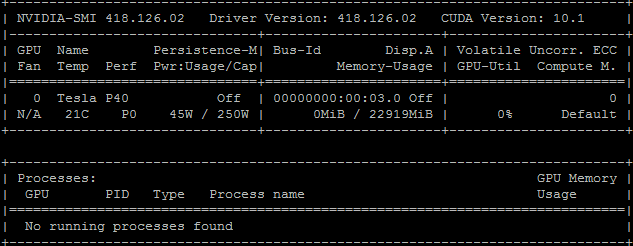
$ sudo nvidia-smi
When the following output appears, it indicates that the GPU driver is normal:
## 4. Install cuda library
### 4.1 Network installation
```
sudo wget https://developer.download.nvidia.com/compute/cuda/repos/ubuntu1804/x86_64/cuda-ubuntu1804.pin
sudo mv cuda-ubuntu1804.pin /etc/apt/preferences.d/cuda-repository-pin-600
sudo apt-key adv --fetch-keys http://developer.download.nvidia.com/compute/cuda/repos/ubuntu1804/x86_64/7fa2af80.pub
sudo add-apt-repository "deb http://developer.download.nvidia.com/compute/cuda/repos/ubuntu1804/x86_64/ /"
sudo apt-get update
sudo apt-get -y install cuda
```
### 4.2 Local installation
```
wget http://developer.download.nvidia.com/compute/cuda/10.2/Prod/local_installers/cuda_10.2.89_440.33.01_linux.run
sudo sh cuda_10.2.89_440.33.01_linux.run
```
## FAQ
### 1. Why does nvidia-smi show 100% GPU utilization?
This problem is caused by the inaccuracy of the system to read the GPU state information. The following commands can correct it and make the system read commands correctly.
#sudo nvidia-smi -pm 1
### 2. Besides self-installation, are there other methods to obtain driver images?
You can submit a ticket, or contact staff, to obtain SCloud's image containing GPU driver and Cuda environment, saving the time of manual installation.