# Ubuntu 14.04 Environment Configuration
## 1. Check GPU device recognition
```
$ sudo lspci | grep NVIDIA
3D controller: NVIDIA Corporation GK210GL [Tesla K80] indicates recognition as K80
3D controller: NVIDIA Corporation GP102GL [Tesla P40] (rev a1) indicates recognition as P40
```
## 2. Obtain cuda network source and configure:
NVidia official source address http://developer.download.nvidia.com/compute/cuda/repos/ubuntu1404/x86_64/
```
$ wget http://developer.download.nvidia.com/compute/cuda/repos/ubuntu1404/x86_64/cuda-repo-ubuntu1404_8.0.44-1_amd64.deb
$ sudo dpkg -i cuda-repo-ubuntu1404_8.0.44-1_amd64.deb
$ sudo apt-get update
```
## 3. Install cuda 8.0
Before installation, please use uname -a to detect the current kernel version, and then make sure the kernel-header package of the corresponding version has been installed. Otherwise, the driver cannot be compiled normally.
```
$ uname -a
$ Linux X-X-X-X 3.13.0-123-generic #172-Ubuntu SMP Mon
$ sudo apt search 3.13.0-123-generic
$ p linux-cloud-tools-3.13.0-123-generic - Linux kernel version specific cloud tools for version 3.13.0-123
$ p linux-headers-3.13.0-123-generic - Linux kernel headers for version 3.13.0 on 64 bit x86 SMP
$ p linux-headers-3.13.0-123-generic:i386 - Linux kernel headers for version 3.13.0 on 32 bit x86 SMP
$ sudo apt-get install linux-headers-3.13.0-123-generic
```
Install cuda
```
$ sudo apt-get install cuda-8.0
```
### 3.1 Check driver status
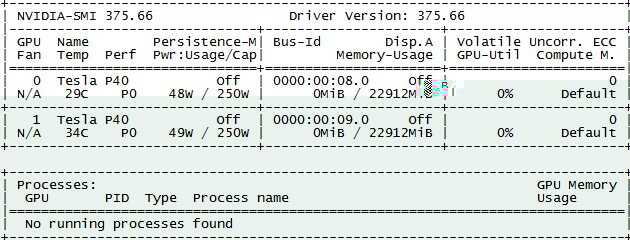
$ sudo nvidia-smi
When the following output appears, it indicates that the GPU driver is normal:
## 4. Test GPU basic function (optional)
### 4.1 Add LD path
$ export LD_LIBRARY_PATH="/usr/local/cuda-7.5/lib64:/usr/lib64/:$LD_LIBRARY_PATH"
### 4.2 Install cuda examples
```
$ cd /usr/local/cuda/bin
$ sh cuda-install-samples-8.0.sh ~/cuda-test/
$ cd ~/cuda-test/NVIDIA_CUDA-8.0_Samples
$ make
$ ./bin/x86_64/linux/release/deviceQuery to get the device status
$ ./bin/x86_64/linux/release/bandwidthTest to test device bandwidth
```
In case of lnvcuvid error during compilation, you can execute:
```
$ find . -type f -execdir sed -i 's/UBUNTU_PKG_NAME = "nvidia-367"/UBUNTU_PKG_NAME = "nvidia-375"/g' '{}' \
```
where nvidia-375 is the version of the currently installed driver
## 5. Install cudnn
Optional. Note: different AI frameworks support different versions of cudnn
### 5.1 Download cudnn software package
https://developer.nvidia.com/cudnn, you need to register a nvidia account before you can download
### 5.2 Install
This example uses cudnn5.1, because TensorFlow currently only supports 5.1.
Ubuntu can select cuDNN v5.1 Runtime Library for Ubuntu14.04 (Deb)
$ sudo dpkg -i libcudnn5_5.1.10-1+cuda8.0_amd64.deb
## 5. Close Ubuntu's automatic kernel update and NVidia Tools
Recommended operation
$ sudo vim /etc/apt/apt.conf.d/10periodic
Change APT::Periodic::Update-Package-Lists "1"; to APT::Periodic::Update-Package-Lists "0";
To prevent Ubuntu from automatically updating packages
## FAQ
### 1. Why does nvidia-smi show 100% GPU utilization?
This problem is caused by the system's inaccurate reading of the GPU status information. The following command can correct it and make the system read the command correctly.
# nvidia-smi -pm 1
### 2. In addition to self-installation, are there other ways to obtain the driver image?
You can submit a ticket or contact staff to obtain the image including GPU driver and Cuda environment made by SCloud, which can save manual installation time.