# NCCL Performance Tuning
NVIDIA Collective Communications Library (NCCL) provides multi-GPU and multi-node communication primitives optimized for NVIDIA GPUs and network performance.
## NCCL Testing Steps in GPU UHost
> Environment verification: Required for 8-card High Cost-Performance GPU 6/6 Pro/A800 cloud hosts
> Dependency verification: NVIDIA drivers, CUDA, gcc: version >=8, NCCL dependent packages, topo files
### Unmet Dependencies
> If dependencies are satisfied, skip directly to NCCL-Test section
This section provides basic environment setup guidance, using Ubuntu as an example.
#### Basic Environment Setup
```bash
## Install make
sudo apt update
sudo apt-get install make
## Install g++ and gcc
sudo apt install build-essential
sudo apt install g++
sudo apt install gcc
```
#### NVIDIA Driver and CUDA Installation
##### NVIDIA
1. Create a cloud host instance via console and select basic image version with desired driver preinstalled
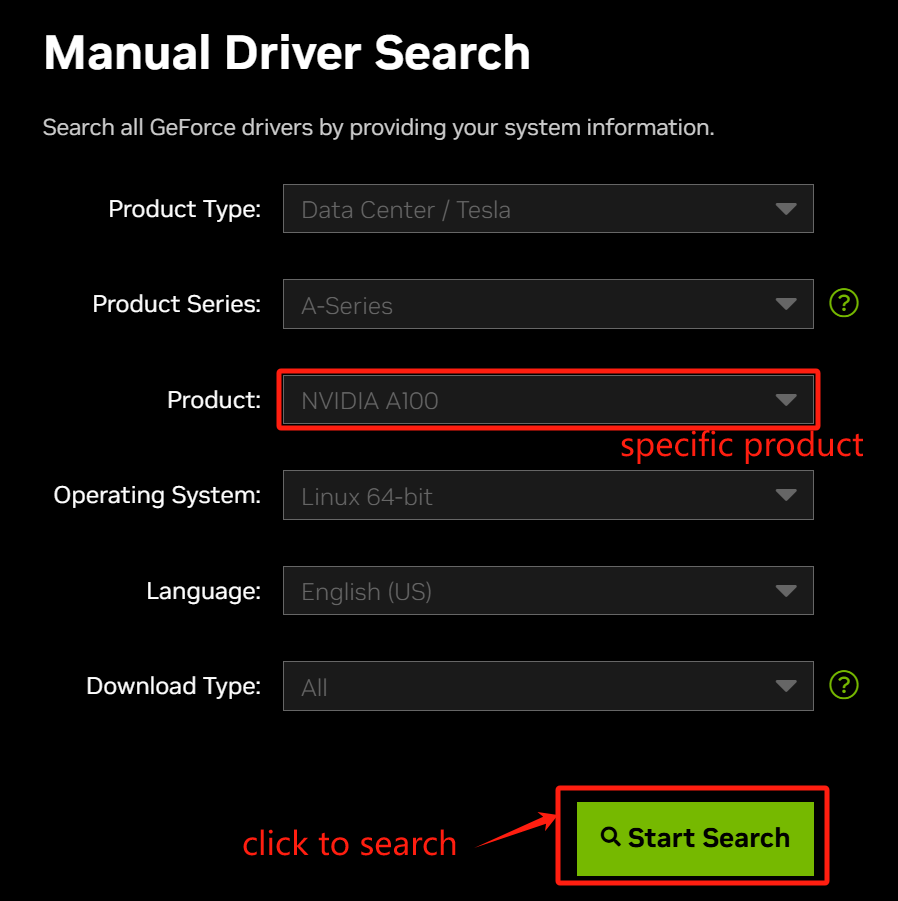
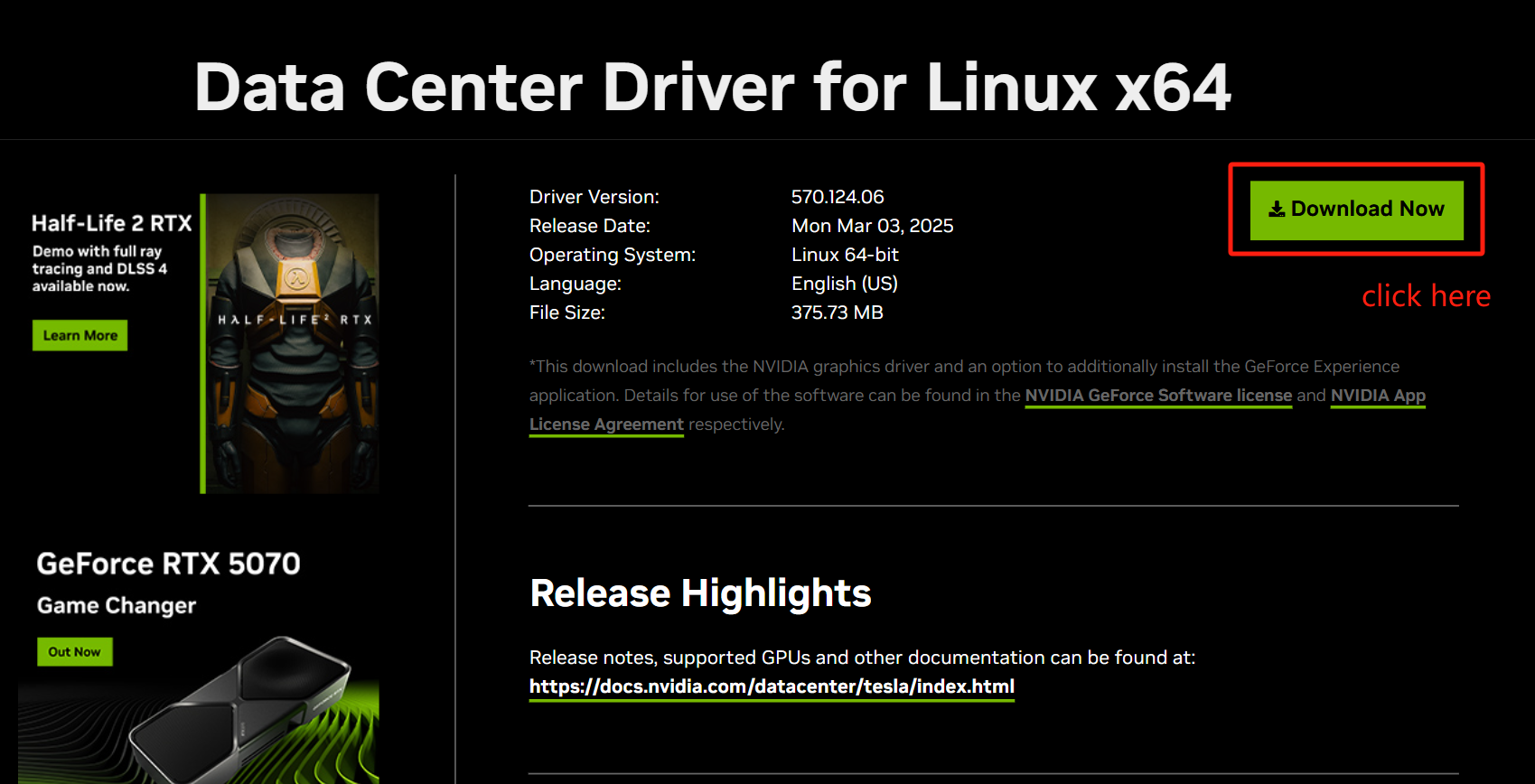
2. Obtain download URL from NVIDIA official website:
+ Select a specific model under "Product"
3. After selection, click Start Search → Download Now (A100 for example):
4. Log into GPU UHost:
+ Download driver using: `wget {copied_URL}`
+ Verify gcc/make installation:
```bash
## check make installation
which make
## install command
sudo apt-get install make
## check gcc installation
gcc --version
## install command
sudo apt-get install gcc
```
5. Start installation: Execute `sh NVIDIA-xxxxxxx.run` to install drivers (add "sudo" before the command if permission issues occur)
6. Verify nvidia driver: Run `nvidia-smi`
##### CUDA
1. Download CUDA from the official website Select the appropriate system and CUDA version (run `nvidia-smi` to check the maximum compatible CUDA version with your current driver. Install a CUDA version ≤ your NVIDIA driver version).
2. Download to local VM using `wget`and execute: `sudo sh cuda_xxxxxxx_linux.run`
3. Configure environment variables and add symbolic links:
```bash
## Add environment variables:
sudo vim /etc/profile //Add at file end:
export CUDA_HOME=/usr/local/cuda
export PATH=$PATH:/usr/local/cuda/bin
export LD_LIBRARY_PATH=/usr/local/cuda/lib64:$LD_LIBRARY_PATH
## Create symbolic link:
sudo ln -s /usr/local/cuda-{version} /usr/local/cuda //e.g. cuda-10.1
## Reboot
sudo reboot
```
4. Verify CUDA environment: `nvcc -V`
#### NCCL Environment Preparation
```plaintext
## Ubuntu 18.04
wget https://developer.download.nvidia.com/compute/cuda/repos/ubuntu1804/x86_64/cuda-keyring_1.0-1_all.deb
## Ubuntu 20.04
wget https://developer.download.nvidia.com/compute/cuda/repos/ubuntu2004/x86_64/cuda-keyring_1.0-1_all.deb
## Ubuntu 22.04
wget https://developer.download.nvidia.com/compute/cuda/repos/ubuntu2204/x86_64/cuda-keyring_1.0-1_all.deb
sudo dpkg -i cuda-keyring_1.0-1_all.deb
sudo apt update
## Ensure package versions match CUDA version (check official repo e.g. for Ubuntu22.04:
## https://developer.download.nvidia.com/compute/cuda/repos/ubuntu2204/x86_64/)
sudo apt install libnccl2=2.18.3-1+cuda12.2
sudo apt install libnccl-dev=2.18.3-1+cuda12.2
```
### NCCL-Test
#### 1. Download NCCL-Test
```bash
## Clone and compile nccl-tests
git clone https://github.com/NVIDIA/nccl-tests.git
cd nccl-tests
## High Cost-Performance GPU 6/6 Pro
make CUDA_HOME=/usr/local/cuda -j
## A800
make MPI=1 MPI_HOME=/usr/mpi/gcc/openmpi-4.1.5a1 CUDA_HOME=/usr/local/cuda -j
```
#### 2. Specify Topology Files
```bash
## High Cost-Performance GPU 6/6 Pro
cd nccl-tests/build
NCCL_MIN_NCHANNELS=32 NCCL_MAX_NCHANNELS=32 NCCL_NTHREADS=256 NCCL_BUFFSIZE=2097152 NCCL_P2P_DISABLE=1 ./all_reduce_perf -b 8 -e 8G -f 2 -g 8
## A800 (Note three manual adjustments required):
## 1. Replace NCCL_TOPO_FILE path with actual topology XML path
## 2. Replace PATH with actual nccl-test directory path
## 3. Replace IP in numa -H with internal IP
mpirun --allow-run-as-root --oversubscribe -np 8 --bind-to numa -H {internal_IP} -mca plm_rsh_args "-p 22 -q -o StrictHostKeyChecking=no" -mca coll_hcoll_enable 0 -mca pml ob1 -mca btl ^openib -mca btl_openib_if_include mlx5_0:1,mlx5_1:1,mlx5_2:1,mlx5_3:1 -mca btl_openib_cpc_include rdmacm -mca btl_openib_rroce_enable 1 -x NCCL_IB_DISABLE=0 -x NCCL_SOCKET_IFNAME=eth0 -x NCCL_IB_GID_INDEX=3 -x NCCL_IB_TC=184 -x NCCL_IB_TIMEOUT=23 -x NCCL_IB_RETRY_CNT=7 -x NCCL_IB_PCI_RELAXED_ORDERING=1 -x NCCL_IB_HCA=mlx5_0,mlx5_1,mlx5_2,mlx5_3 -x CUDA_VISIBLE_DEVICES=0,1,2,3,4,5,6,7 -x NCCL_TOPO_FILE={absolute_path_to_topo.xml} -x NCCL_NET_GDR_LEVEL=1 -x CUDA_DEVICE_ORDER=PCI_BUS_ID -x NCCL_ALGO=Ring -x LD_LIBRARY_PATH -x PATH {nccl-test_dir_path} -b 8 -e 8G -f 2 -g 1
## For multi-host testing:
## - Specify multiple IPs separated by commas after -H
## - Set np parameter as (number_of_hosts × 8)
## - Include all participating host IPs (use ip addr to verify)
## - Ensure NCCL_TOPO_FILE points to absolute path
## - PATH should point to all_reduce_perf location
```
## NCCL TOPO File Transparent Transmission from GPU UHost to Container
When using Docker on GPU UHosts such as the 8-card High-Performance Graphics Card 6/High-Performance Graphics Card 6 Pro/A800, you can complete topology passthrough according to the following steps:
1. Check if the file /var/run/nvidia-topologyd/virtualTopology.xml exists in the GPU UHost:
- If it exists, proceed to step 2.
- If it does not exist, contact technical support. They will provide you with the file. Copy and save the file to /var/run/nvidia-topologyd/virtualTopology.xml on the GPU node, then proceed to step 2.
2. Execute the following operations within the GPU UHost:
```bash
docker run -it -e NVIDIA_VISIBLE_DEVICES=all -v /var/run/nvidia-topologyd/virtualTopology.xml:/var/run/nvidia-topologyd/virtualTopology.xml ubuntu /bin/bash
```
## NCCL Performance Optimization Configurations
```bash
NCCL_MIN_NCHANNELS=32 //Minimum channels NCCL can use
NCCL_MAX_NCHANNELS=32 //The maximum number of channels that NCCL can use. Increasing the number of channels will also increase the number of CUDA blocks used by NCCL, which may help improve performance. For NCCL versions 2.5 and above, the maximum value is 32
NCCL_NTHREADS=256 //Set the number of CUDA threads per block. For GPUs with lower clock frequencies where you want to increase parallelism, adjust this parameter. For newer-generation GPUs, the default value is 512
NCCL_BUFFSIZE=2097152 //
The buffer size used by NCCL when transferring data between GPU pairs. The default value is 4,194,304 (4MB), and the value must be an integer in bytes
```